
Team Collaboration – Working Together as a Group
 By CraftMyPDF Updated October 10, 2022
The teams feature is a shared workspace that allows you to collaborate and get things done in your organization, it’s much easier to share templates with your team.
A team is a shared workspace that lets you collaborate and get things done in your organization. It’s much easier to share templates with your team.

All the team members are allowed to access and manage the templates in the team. In addition, each team has its own
(i) Team templates
(ii) Team API Key and the team API Key is for your team to generate PDFs.
(iii) Team members
1. Team Subscription
The subscription of a team uses the team owner’s subscription. If your subscription supports Teams (pricing page), then you can create new teams and invite members to your teams and control the permissions of the teams.
2. Switching between teams and my workspace
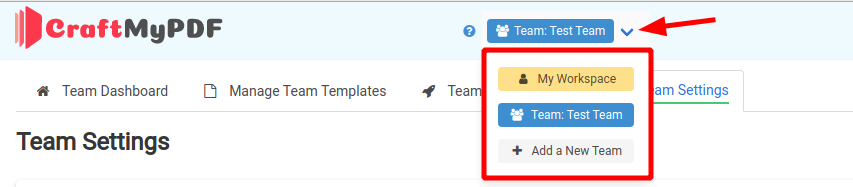
To switch between your own workspace and teams, click on the down arrow button in the navigation bar on the upper top.
3. Create a New Team
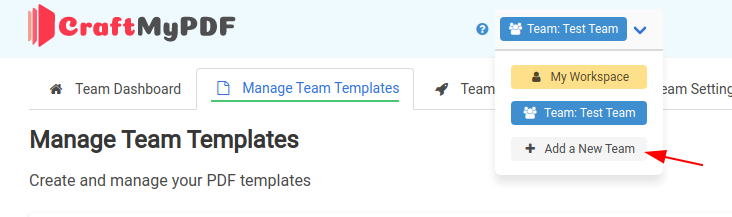
In the Teams menu, click on Add a New Team to create a new team.
4. Update Team Name and Description
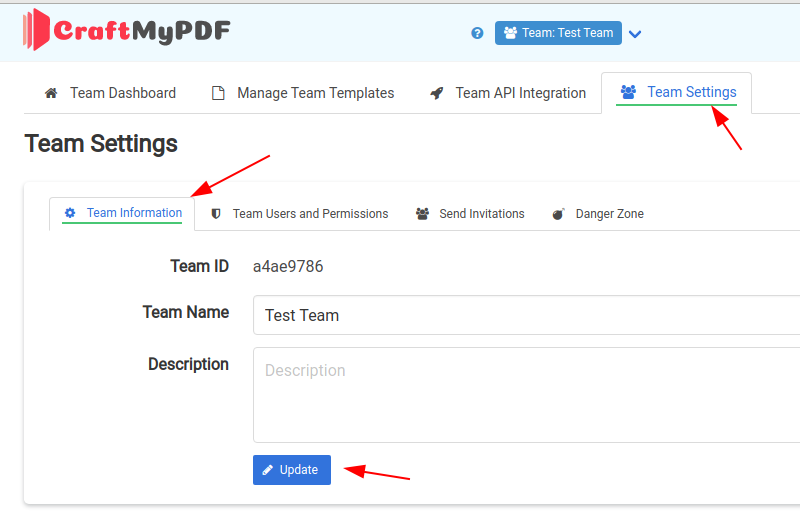
On your team page, select Team Settings and click on the Team Information. Update your team information and click on Update to save the settings.
5. Send Invitations
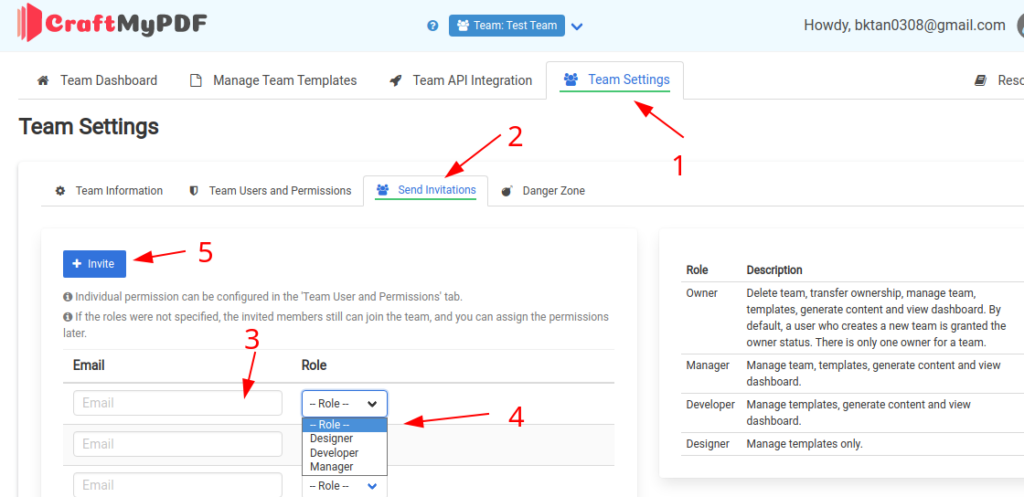
On the Team Settings page, select Send Invitations, here is where you can invite team members.
Enter the emails and select a role for the emails, then click on Invite to send invitation emails.
6. Manage Team Permissions
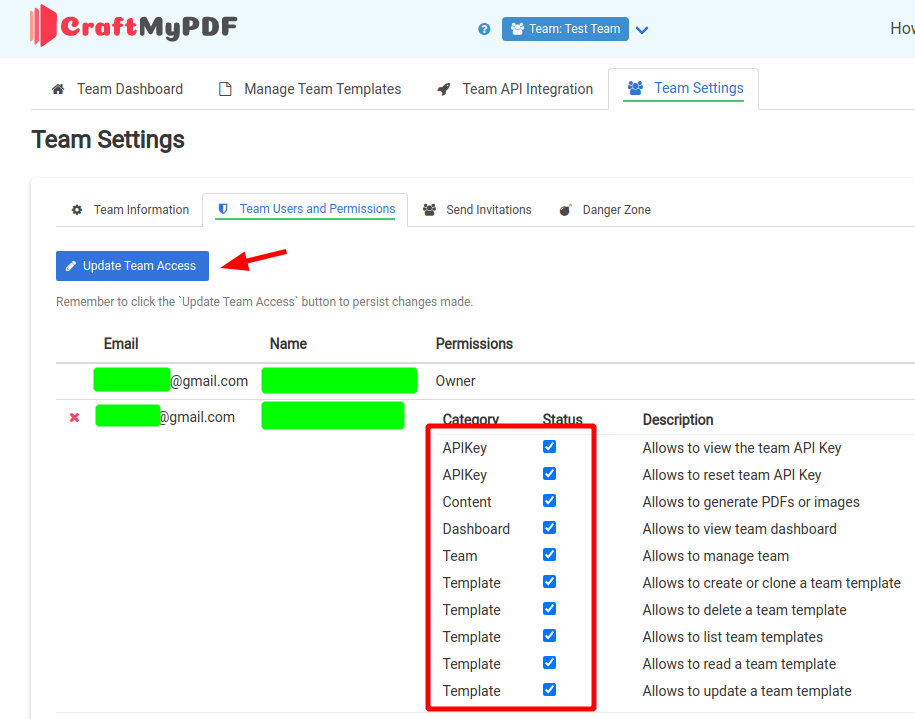
On the Team Settings, select Team Users and Permissions tab. It’s where you can see a list of full team members and the permissions.
Toggle the checkboxes to turn on/off permission. Click on Update Team Access to save the settings.
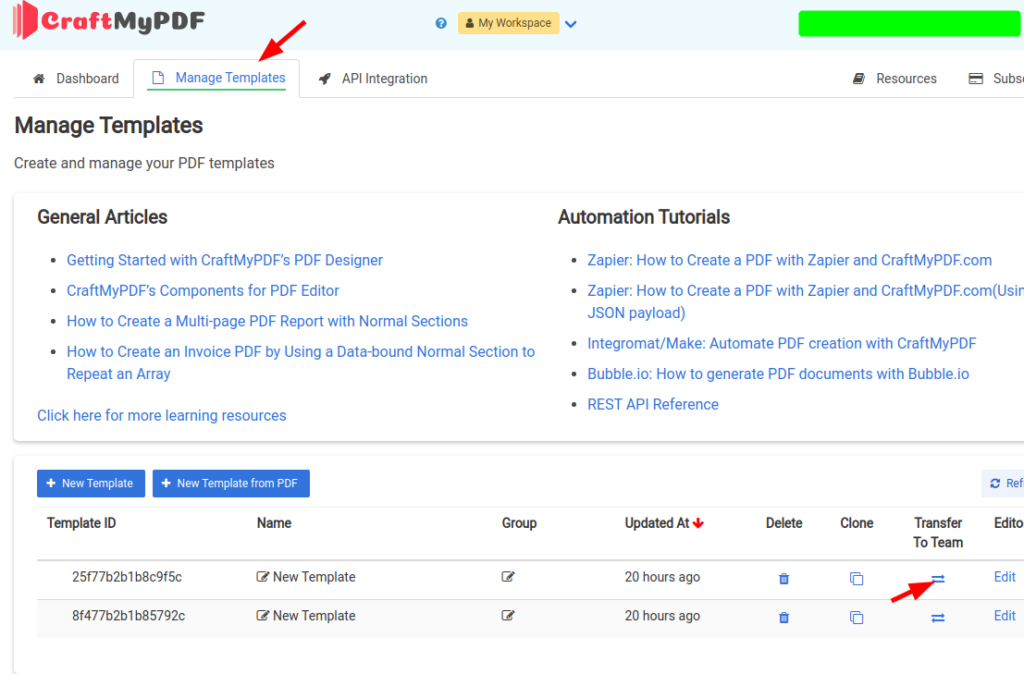
7. Transfer a Template to a Team
On your Manage Template page, click on the icon in the Transfer To Team column.
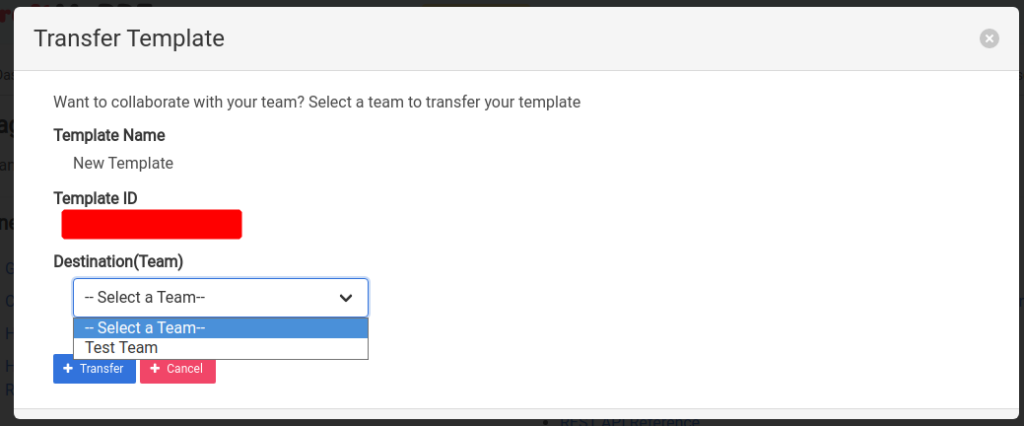
Select a team and click on the Transfer button.
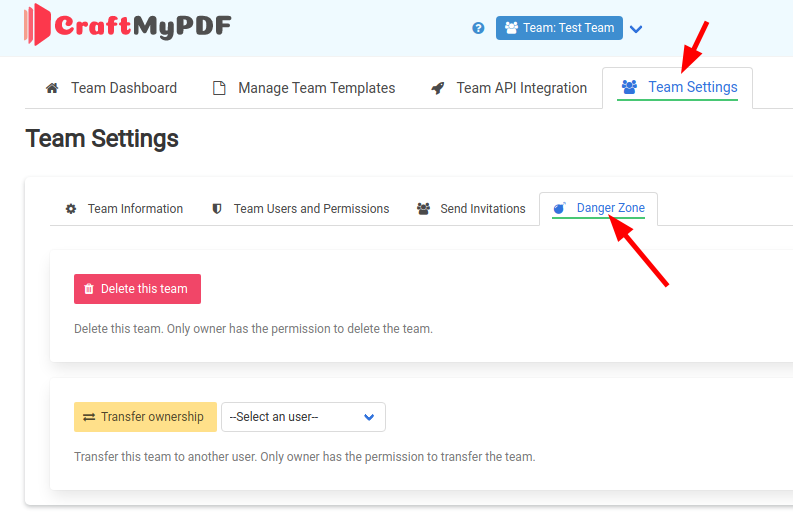
8. Danger Zone
Delete and transfer team features are only available to the owner.
Start generating PDFs today
Design templates in the browser and generate pixel-perfect PDFs via a simple REST API. 50 free PDFs every month, no credit card required.
Keep reading
The Components of CraftMyPDF Template Editor
The PDF template editor consists of a rich set of components for you to build beautiful PDFs with powerful expressions, page-breaks and data-bindings. In this article, we will cover all the components in the PDF designer.
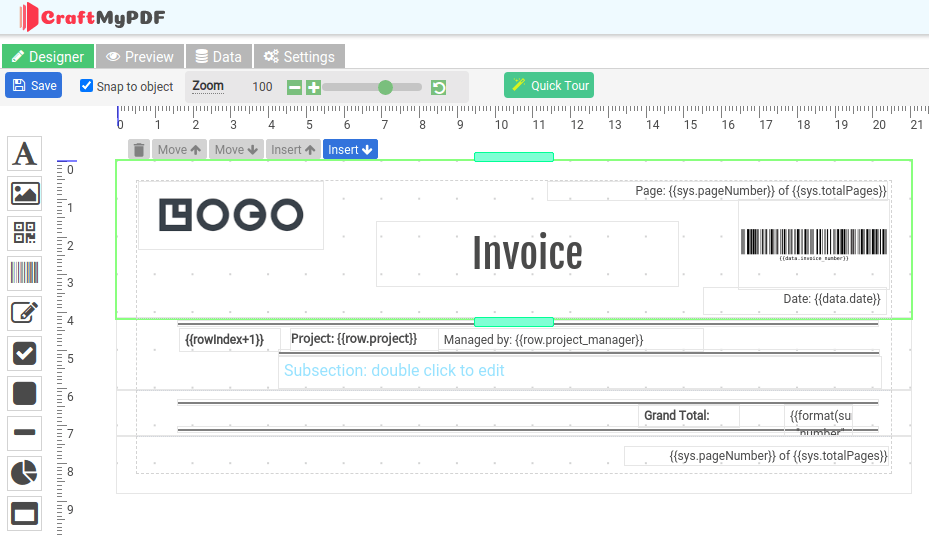
Getting Started with CraftMyPDF and the PDF Designer
CraftMyPDF offers a web-based drag & drop PDF template editor that lets you design templates and generate pixel-perfect PDF documents from reusable templates. In this article, we will cover the basics of PDF template editor, page breaks, data-binding, preview, and others.

Make.com: Automate PDF Creation with CraftMyPDF
With CraftMyPDF’s PDF Generation API and Make.com integration, you can easily automate your workflow to create PDFs from a template. This tutorial will walk you through creating a PDF document with Make.com from CraftMyPDF’s PDF template. Prerequisite: You need to create a new PDF template first on CraftMyPDF. Read this step-by-step tutorial to create a new PDF