
How to Load Custom Fonts in a PDF
 By CraftMyPDF Updated June 29, 2026
PDF format is capable of embedding fonts. CraftMyPDF not only supports Google fonts but also supports custom fonts.
PDF format is capable of embedding fonts. CraftMyPDF not only supports Google fonts but also supports custom fonts.
If you’re generating PDFs programmatically, the CraftMyPDF API supports the same custom font capabilities, allowing you to apply branded typography consistently across invoices, certificates, reports, and other documents created through your applications.
In this short tutorial, we are going to guide you to use your own custom fonts for your PDF template.
Option 1: Use a font file (woff, woff2, or a TTF file)
Step 1: First, please upload your font file(woff, woff2 or TTF) to a CDN
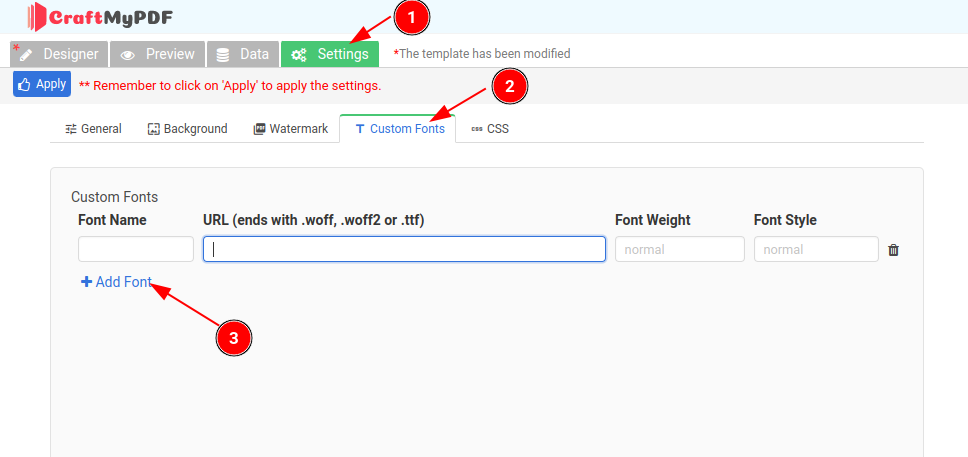
Step 2: Then in the Settings tab -> Custom Fonts tab, enter your font name, and URL(You may leave the Font Weight and Font Style empty).
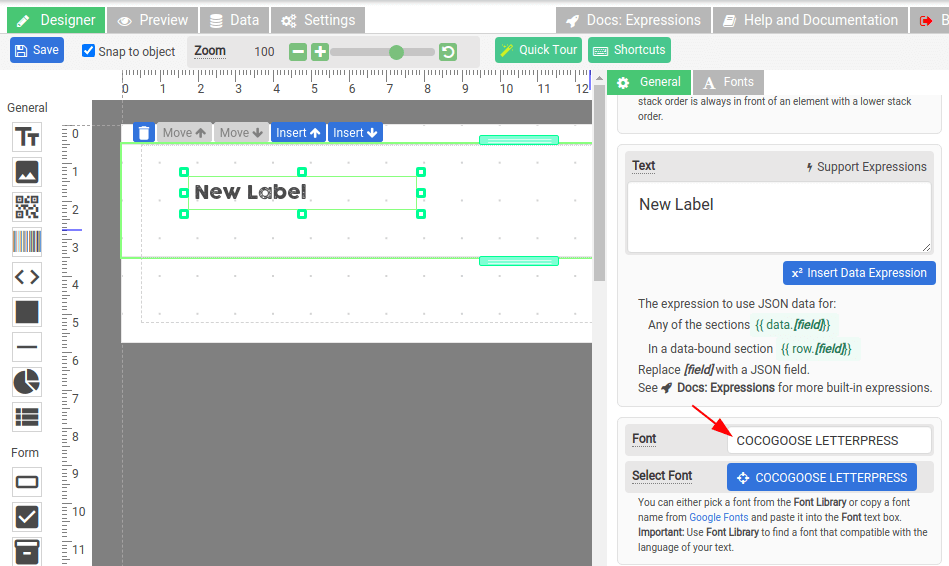
Step 3: In the PDF template designer, use the drag-and-drop editor to select a label, enter the font name, and press Enter.
Option 2: Use CSS import style
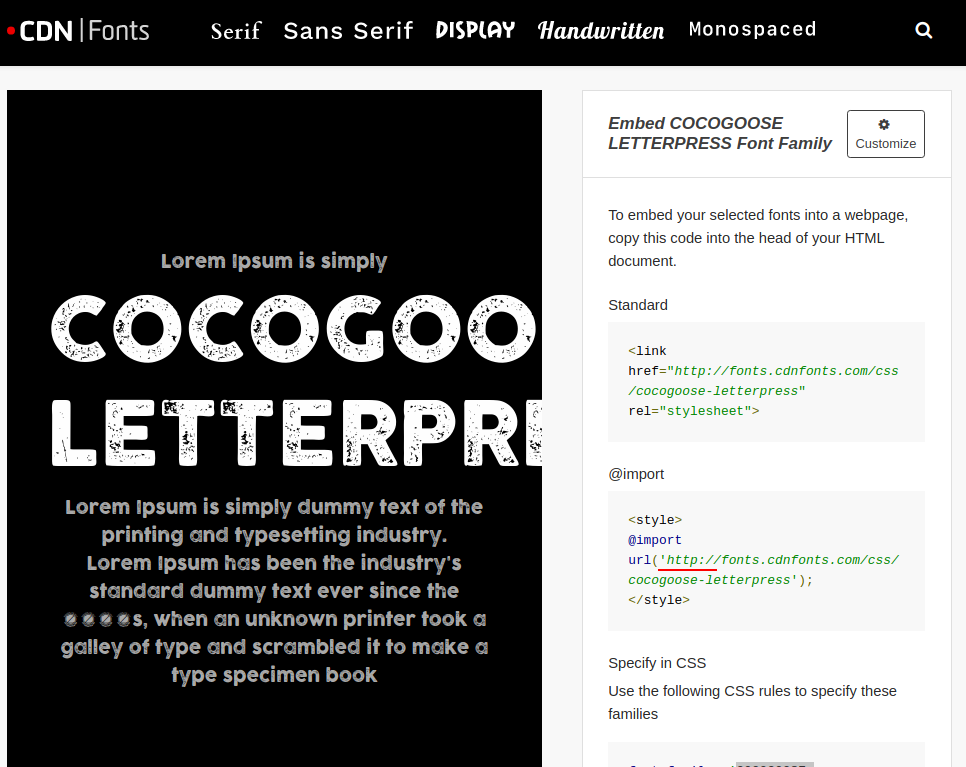
You may use a font that is available on an online font library such as CDN Fonts
The following is a font named COCOGOOSE LETTERPRESS and we are going to use the font for a label component.
Step 1: In the Settings tab, paste the following import style into Custom CSS as follows:
@import url('https://fonts.cdnfonts.com/css/cocogoose-letterpress');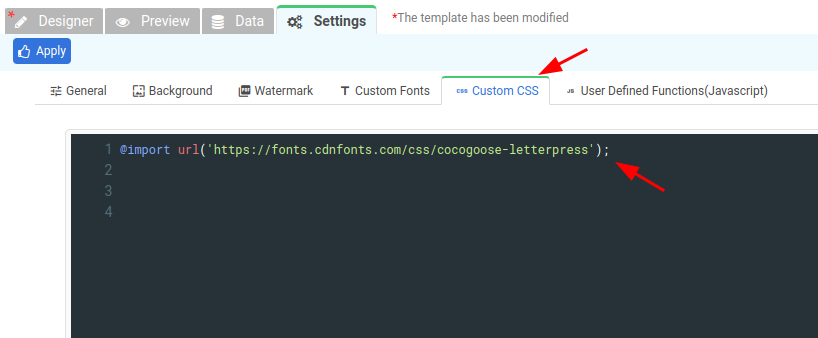
Step 2: Then, in the PDF template designer, click to select a label and enter the font name, and press Enter
If your exported PDF appears rotated or displays with the wrong page orientation, try using an orientation correction tool before sharing or printing the document.
If fonts or elements don’t appear where expected, a page inspector tool can help you examine the PDF structure and verify the page layout.
Start generating PDFs today
Design templates in the browser and generate pixel-perfect PDFs via a simple REST API. 50 free PDFs every month, no credit card required.
Keep reading

CraftMyPDF vs DocuSign vs PandaDoc: Which eSignature API Should Developers Choose in 2026?
DocuSign, PandaDoc or CraftMyPDF? Compare eSignature API pricing, webhooks, embedded signing, eIDAS levels and the steps from data to a signed PDF.
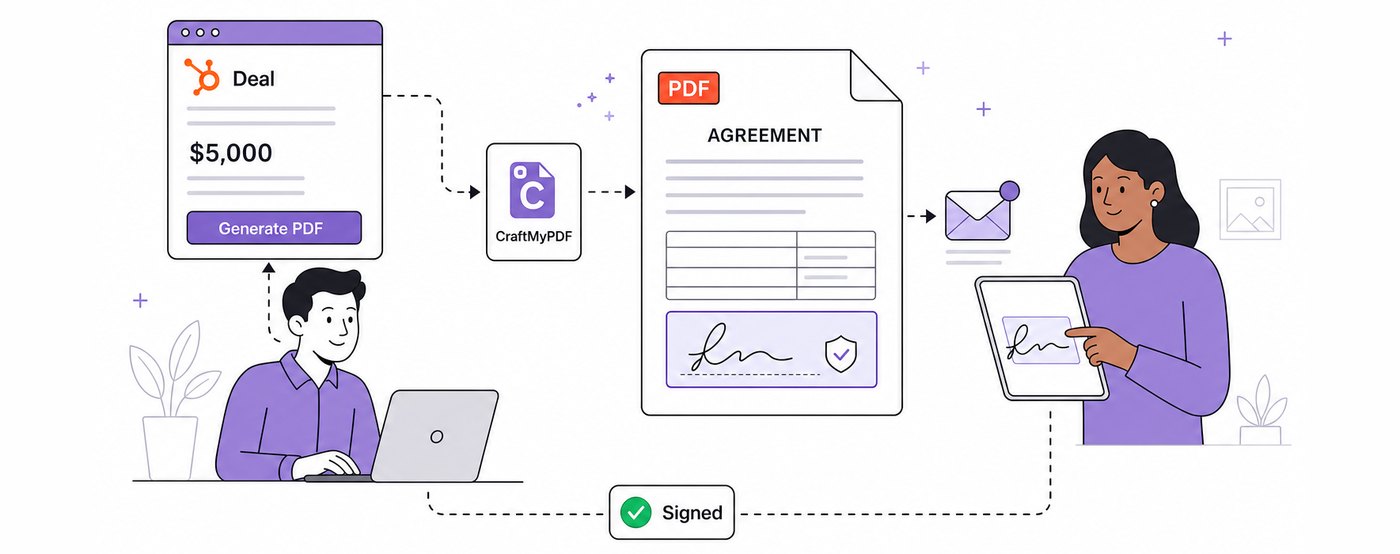
How To Add eSignatures To HubSpot Deals (Without Leaving Your CRM)
Send HubSpot deal documents for eSignature straight from the Deal record: install the CraftMyPDF app, build a signature-ready template, and track signed PDFs.
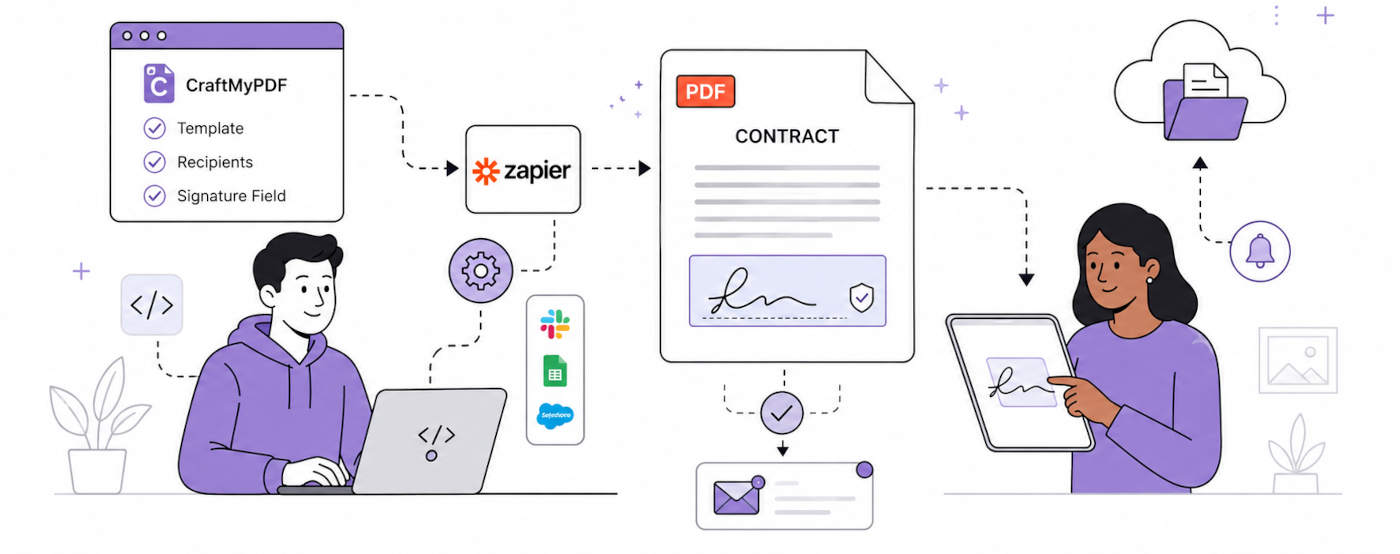
How To Automate eSignatures Using Zapier (with CraftMyPDF)
A step-by-step guide to sending contracts for eSignature automatically: build the template once, trigger it from Zapier, track signing status in CraftMyPDF.